

A routine check of your Google Search Console. And then this: inexplicable spam URLs have crept into the Google index, your content has been compromised and your digital life's work is at stake.
The initial shock quickly fades and is replaced by the urgent question: What to do? How can you get this chaos under control again?
In this article, I'll take you step-by-step through the process to fix the damage, get rid of the spam URLs and make your website not only clean again, but even more secure than before.
I'm sure you're in a hurry. So let's get right on board.
Initial assessment
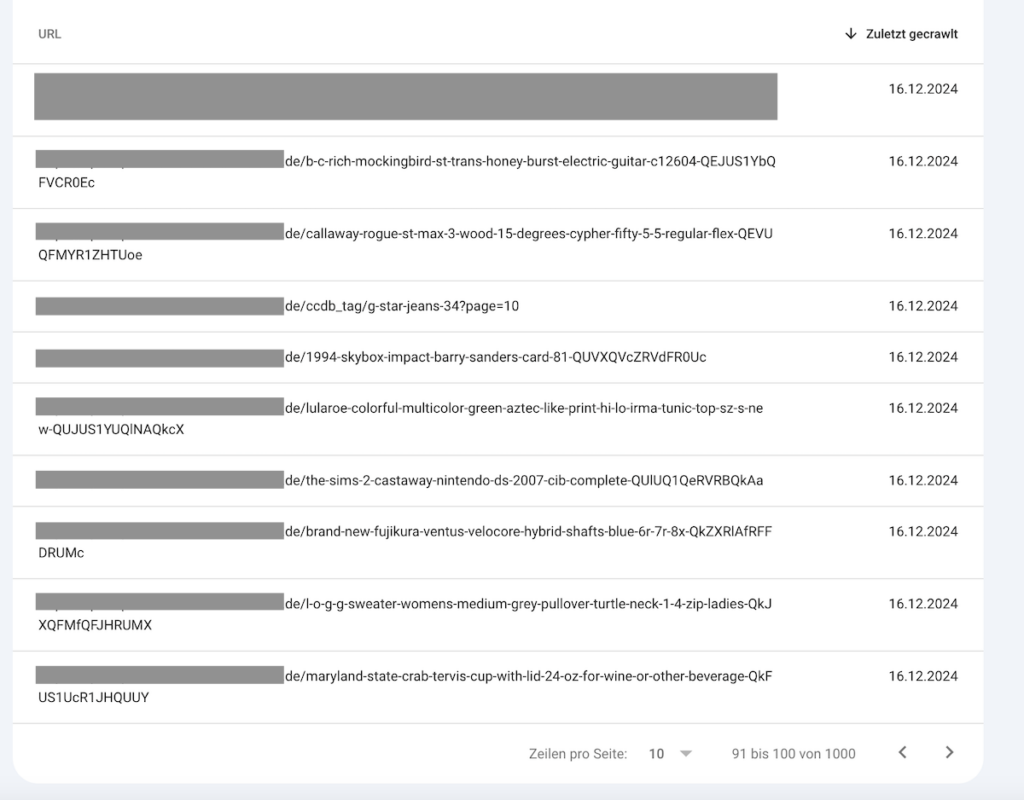
If your website has been hacked, you first need to get an overview of the damage. You can often recognize a hack by one or more of these signs:
- Spam URLs in Google's index: thousands of unwanted pages, often with foreign-language content.
- Warnings in the Google Search Console: Indications of hacked content or suspicious activity.
- Compromised pages: Hidden or camouflaged content that is not immediately visible.
- Recurring patterns: For example, spam URLs that all start with a "+" sign.
Now that you have recognized the problem and gained an overview, you need to act quickly.
Step 1: Create backup and secure website
Before you make any changes, you should immediately create a complete backup of your hacked website. This will not only secure important data, but also preserve evidence that can help you later with analysis and prevention.
Create backup
- Save a complete image of the website
- Document evidence of the hack
- Identify possible vulnerabilities and attack methods later
Change passwords
As soon as the backup is complete, change all passwords - immediately. This applies to:
- Admin/CMS accounts: Protect access to the backend
- FTP/SFTP access: Back up file transfers
- Database access data: Deny database access to unauthorized persons
- Hosting panel accounts: Secure administrative tools
Remove unauthorized users
Go through all user accounts and remove any that are not authorized. This will ensure that no backdoor remains open.
Step 2: Clean up website files
Now it's time to manually check and remove all files added by hackers. You should take the following measures:
Manual inspection
- Search all files and folders. For WordPress websites, you will probably find some .php files with cryptic names in your web space. You can start with these. But be careful not to delete any core files !
- Remove unknown code, programs, folders and plugins. It is also possible that code has been added to your WordPress functions.php, for example. You should therefore also look through the core files manually. This is tedious and takes time, but it is necessary.
Update software
- CMS core files: Update your WordPress, Joomla or other CMS core files
- Themes and templates: Ensure that all designs are up to date
- Plugins and extensions: Update all additional modules to close security gaps
Step 3: Implement correct HTTP status codes
To deindex the hacked URLs as quickly as possible, proceed as follows:
Use error codes correctly
If you simply delete the content, you will soon get thousands of 404 errors in the Google Search Console. This is not ideal, as we generally want to avoid these errors and, depending on the number of spam URLs, it can also be problematic for your website's crawl budget. In addition, the URLs remain indexed for a long time.
It is therefore better to set the hacked URLs to status code 410 "Gone".
This tells you that the content has been permanently removed and ensures that it is quickly deindexed.
Server-side solutions for sample URLs
For URLs that follow a certain pattern (e.g. all those beginning with "+"), you can act on the server side:
- For Apache: Use .htaccess rules, e.g. RewriteRule ^\+ - [G], to return the 410 Gone status.
- For Nginx or other servers: Configure similar rules that have the same effect.
Automatically set all 404s to 410: You can also temporarily automatically display a 410 error instead of a 404 error. WordPress users can implement this via this plugin.
Please contact a developer if you do not know what you are doing. Otherwise you can completely paralyze your site here. If you have automatically set all 404s to 410, don't forget to change this again after you have gotten rid of the spam URLs.
Check Robots.txt
Perhaps you have already thought of simply blocking the spam URLs via robots.txt. This approach is not wrong, but you should avoid it:
- Make sure that folders with spam URLs are not blocked.
- Google bots must be able to reach these URLs in order to correctly recognize the 404/410 status.
- A simple robots.txt configuration does not remove the URLs from the Google index.
Step 4: Clean up in the Google Search Console
Now it's time to actively inform Google about your cleanup and clean up the index:
Verify Google Search Console
If you haven't already done so, verify your website in Google Search Console.
Submit a reconsideration request:
Submit a request for reconsideration and provide documentation:
- All cleaning steps performed
- The measures you can take to protect your site against future attacks
- Documents for your cleanup work
Prioritize important pages
Resubmit your homepage and important landing pages for indexing so that Google updates the cache with your original content if it has been changed.
Use URL Removal Tool
- This tool temporarily removes spam URLs from the search results.
- When removing a large number of URLs, you can also request entire directories if they contain spam.
- Note: This is a temporary solution - without correct error codes, the URLs will reappear after approx. 90 days.

Step 5: Monitor and maintain
You have now done the most important thing! Now it's time to monitor the progress of your "cleaning work"!
Keeping an eye on Google Search Console
- Check index coverage reports: Regularly monitor how the indexing develops and whether new spam URLs appear.
- Monitor security problems: Watch out for warnings and notices in the Search Console that could indicate new attack attempts.
- Track spam URLs: See when and how the unwanted URLs disappear from the index.
Implement preventive safety measures
- Install security software: Use trustworthy security plugins or software to protect your website.
- Regular backups: Create complete backups regularly to be able to restore quickly in an emergency.
- Strong passwords & two-factor authentication: Use complex passwords and additionally secure access with a second authentication factor.
- Keep software up to date: Update all CMS components, plugins and extensions to close known security gaps.
Frequently asked questions
I hope this tutorial has helped you to remove unwanted spam URLs from Google Search Console. Keep in mind that every case is different and you may have to adapt the solution in some places. However, the basic steps remain the same.
1. how long does it take for the complete cleanup to take effect?
Depending on the severity of the hack, the clean-up process can take days or even weeks. Patience is required here.
2 Why are 410 status codes so important?
Correctly implemented error codes signal to Google that a page no longer exists. Without these codes, spam URLs can remain in the index even if they are no longer active.
3. why do some spam URLs continue to appear in the Search Console after the cleanup?
It is normal for some spam URLs to appear in the Search Console reports after the cleanup. As long as they return the correct status codes (404/410), they will not affect your rankings.

