


Summary: GSC for daily SEO work
- Direct access to Google data: The Search Console is the only tool that provides you with precise information directly from Google - no estimates, but exact keywords, impressions and clicks for your pages.
- Leverage long-tail potential: Identify keywords with position 10-20 and high impressions to quickly reach the first page through targeted content extensions.
- Detect technical problems at an early stage: The indexing report immediately shows you critical errors that prevent Google from crawling or indexing your pages.
- Data-driven content strategy: Use performance data to develop new content ideas based on actual search behavior rather than guesswork.
- Analyze historical trends: With the comparison function, you can identify pages that are losing performance and take targeted countermeasures before major traffic losses occur.
Are you familiar with this? You invest time and effort in your website, but the hoped-for visitors from Google searches don't materialize? While many immediately turn to expensive SEO tools, they often overlook the most powerful tool available to them for free: the Google Search Console.
As a direct line to Google, it tells you exactly how the search engine perceives your site, where you already score and which weak points should be urgently rectified.
In this article, I'll show you how you can not only improve your rankings with the Search Console, but also gain deeper insights into how Google works.
What is the Google Search Console?
The Google Search Console(GSC) is a free tool from Google that gives you direct insight into how your website is performing in the search engine. It shows you exactly how Google sees, crawls and indexes your site - and provides valuable data on your rankings, click-through rates and technical problems.
What makes the GSC so valuable for your SEO work?
The GSC is probably the most valuable SEO tool of all, as the data comes directly from Google itself.
The difference to third-party tools lies in the data quality. While tools like SEMrush try to replicate and analyze Google results, the GSC provides you with precise data:
- Exact keywords for which your page ranks (not just estimates)
- Actual click numbers and impressions
- Exact average positions of your pages
- Direct information on crawling problems and indexing status
Basic functions at a glance
The most important functions of the GSC are
- Performance report: Shows you exactly which keywords your page ranks for, how many clicks and impressions you receive, your CTR (click-through rate) and the average position.
- Indexing report: Provides information about how Google crawls your site and which pages are indexed, not indexed or problematic.
- URL inspection: Allows you to check individual URLs and see how Google interprets this page and whether there are any problems.
- Links report: Shows you internal and external links to your website.
- Sitemaps: Here you can submit your sitemap and check its status.
- Crawl statistics: Provides information about how Google crawls your website.
Setup and basic configuration
If you have never used the Search Console before, you will first need to set it up and create your domain property.
Setting up the GSC is straightforward and only takes a few minutes:
- Search Google for "Search Console" or go directly to search.google.com/search-console
- Click on "Start now" or "Start now"
- Choose between the two property types:
- Domain property: Includes all subdomains (www, m., etc.)
- URL prefix property: Only refers to a specific URL version
For most website operators, the domain property is the better choice as it provides more comprehensive data.
Verification
To prove that you are actually the owner of the website, you need to verify the domain. There are various methods for this:
- DNS record: The recommended method for domain properties. Here you add a TXT entry to your DNS records.
- HTML file: You upload an HTML file provided by Google to the root directory of your website.
- HTML tag: You insert a meta tag in the header area of your start page.
- Google Analytics: If you already use Google Analytics, you can use it to carry out the verification.
- Google Tag Manager: Alternatively, you can also verify via an existing Tag Manager account.
Choose the method that is easiest for you to implement. For WordPress users, the HTML tag method is often the most convenient, as many SEO plugins such as Yoast or Rank Math can automate the implementation.
Submit and verify sitemap
After successful verification, you should submit your XML sitemap:
- Go to the "Sitemaps" section in the left menu
- Enter the path to your sitemap (usually sitemap.xml or sitemap_index.xml)
- Click on "Send"
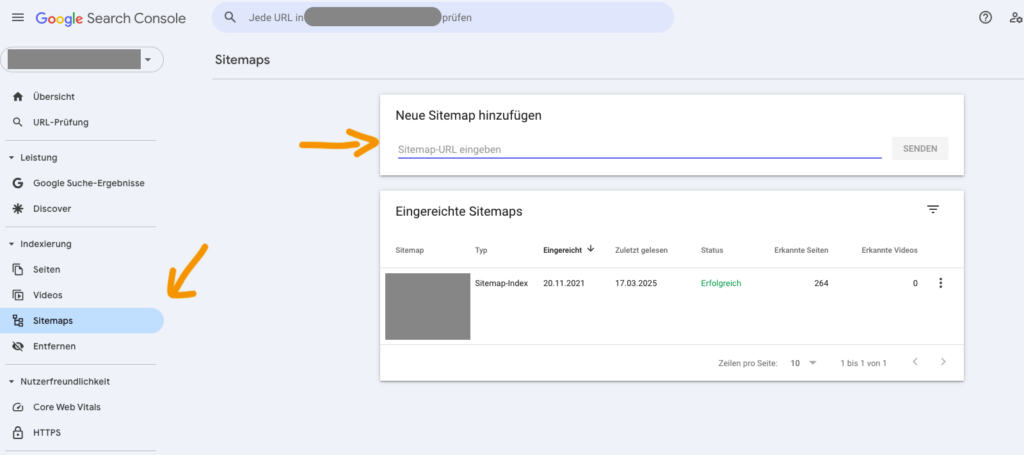
The GSC will now check your sitemap and show you the status. Pay attention to the following points:
- Successful: All URLs were processed without problems
- Warnings: Some URLs have minor issues, but are mostly fine
- Error: Certain URLs could not be processed
- Excluded URLs: URLs that were not indexed for various reasons
After submitting your sitemap, it may take a few days for Google to crawl all pages and display the complete data in the GSC. So a little patience is required here.
Performance report: The heart of the GSC
The performance report is the heart of the Google Search Console and probably the most important area for your SEO work. It gives you a detailed insight into how your website is performing in the search results.
The report shows you exactly for which search queries your pages appear in the Google results, how often they are clicked on and which positions you are in.

The report is divided into different tabs:
- Queries: Shows the exact search terms that lead to your page
- Pages: Lists all URLs of your website with their performance data
- Countries: breakdown by geographical performance
- Devices: Comparison of performance on desktop, mobile and tablet
- Search type: Differentiation between web, image, video and news searches
- Date comparison: Enables the comparison of different time periods
Understanding clicks, impressions, CTR and position
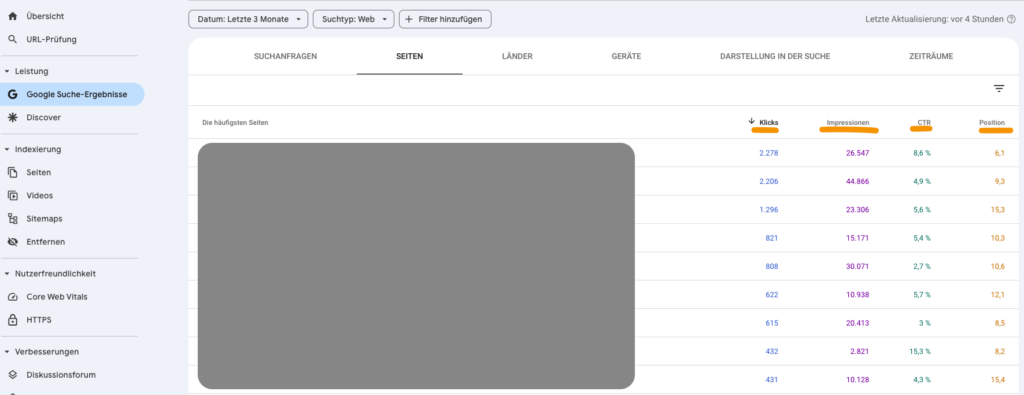
The performance report measures four key metrics that you should definitely understand:
- Clicks: The number of clicks on your website from Google search results. These are specific visitors who have reached your site.
- Impressions: How often your URL was displayed in the search results. Important: An impression is counted as soon as your page appears in the results - even if the user does not scroll far enough to actually see it. A high number of impressions with few clicks can be an indication of optimization potential.
- CTR (click-through rate): The percentage of impressions that resulted in clicks. Calculation: clicks ÷ impressions × 100. A good CTR varies depending on the position and industry, but generally applies:
- Position 1: 20-30% CTR is common
- Position 5: 5-10% CTR can be expected
- Position 10: 1-2% CTR is normal
- Position: The average ranking position of your URL for a specific search query. Note: This is an average value that can fluctuate. A position of 7.5 could mean that your page appears in position 5 for some search queries and in position 10 for others.
Effective use of date filters and period comparisons
You can use the date filters to gain deeper insights into your performance:
Analyze time periods: The GSC stores data for up to 16 months. Use this option to identify long-term trends. For example, you can choose between a 7-day, 28-day or 3-month period or set a user-defined period.
Period comparisons: One of the most useful functions is the comparison of two periods. Click on "Compare" and select the periods to be compared.

For example, you can:
- Compare the last 28 days with the 28 days before that
- Compare this month with the same month of the previous year
- Analyze the time before and after a Google update
- Identify seasonal fluctuations
How can you improve your content with the GSC?
Thanks to the data provided by the Google Search Console, you can optimize your content in a very targeted manner. It should be an integral part of your SEO strategy to look for optimization potential in the GSC. Let's take a look at how you can do this.
Integrate missing keywords and topics into your pages
An invaluable advantage of the GSC is that it shows you exactly which keywords your pages are already ranking for - even if you haven't specifically optimized for them. This insight is worth its weight in gold for your on-page optimization:
- Click on a specific URL of your website in the performance report
- The report now shows all keywords for which this URL appears in the search results
- Sort these keywords by clicks or impressions
- Pay particular attention to keywords with high positions (1-10) or those with many impressions but few clicks
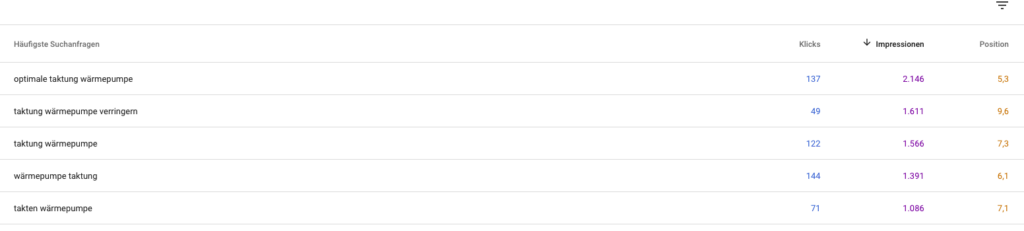
Practical example: In this case, for example, "reduce heat pump timing" immediately catches the eye. Although the URL ranks in the top 10, it tends to be in the lower range and receives relatively few clicks via this keyword.
The topic is still missing in this post, so we can consider whether to expand the post or even create a separate post for it.
How do you integrate similar keywords into your content?
You will probably also find many keywords in the page analysis that are similar to your main keyword. If they don't already appear in your text, this is an easy way to get more clicks!
- Check whether the most important keywords already appear in the text:
- Are they included in the title (title tag)?
- Do they appear in the headings (H1, H2)?
- Do they appear in the first 100-200 words?
- Add missing keywords to your content, of course:
- Don't just add them at random, but integrate them organically
- Look out for semantically related terms and synonyms
- Add relevant sections to the content if necessary
- Look out for keywords with similar topics that are not yet covered:
- If you rank for "buy summer dress", for example, but not for "order summer dresses", also integrate this variant
This information, which comes directly from Google, is far more valuable than theoretical keyword research as it is based on real data and shows what Google already considers your site to be relevant for.
Find long-tail keywords with the Google Search Console & Regex
Long-tail keywords are longer, more specific search queries that may bring less traffic individually, but can be very valuable in total. The GSC shows you exactly which of these keywords have potential.
And you can find them quickly with the regex function:
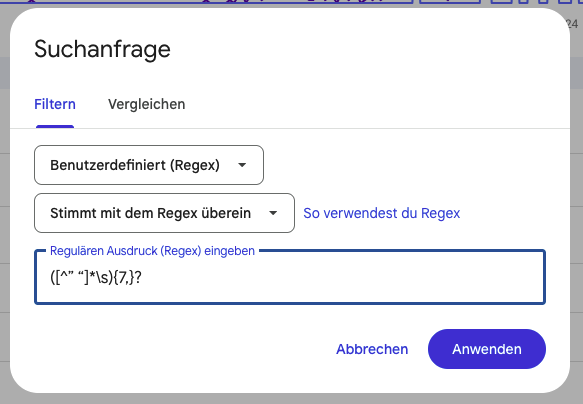
([^” “]*\s){7,}?-> Use this command to filter all search queries with at least 7 words. Simply replace the 7 with the desired length. Even with 4 or 5 you will usually find interesting longtails.
Then sort the list by impressions and pay attention to the average position. Long-tail keywords with comparatively high impressions but a position > 5 are interesting.
Then integrate the keywords into your content as described above.
Of course, you can also use this process to find ideas for new content!
Recognize and fix CTR problems
A low click-through rate (CTR) means that your page appears in the search results but is not clicked on often enough. You can track down these problems in the Google Search Console:
Activate CTR and position data in the performance report, filter for positions better than 8.1 and sort by CTR (ascending). Keywords with good positions (1-3) but below-average click-through rates are particularly interesting.
The most common causes of low CTR are unattractive title tags, boring meta descriptions or competition from featured snippets, ads and other SERP features. To remedy this, you should optimize your title tags with call-to-actions, numbers or emotional triggers, provide meta descriptions with a clear value proposition and try to win over strong competition from SERP features yourself.
Test different variations of your meta data over a period of 2-4 weeks and track the changes in CTR to continuously optimize.
How do you use performance comparisons to identify pages in need of improvement?
With the GSC's comparison function, you can systematically search for pages that need attention:
- Use the "Compare" function for longer periods of time:
- Compare 6 months with the previous 6 months
- Sort by difference in impressions or clicks
- Identify two types of pages:
- Pages with strong growth (to learn what works)
- Pages with significant decline (to identify and fix problems)
- Check for declining pages:
- Whether the average position has deteriorated
- Which keywords have brought traffic in the past
- Whether traffic has migrated to other pages on your website
- Filter out seasonal content:
- Comparisons with the same period in the previous year to take account of seasonal fluctuations
- This way you avoid unnecessary optimizations on pages that naturally receive less traffic at Christmas, for example
Technical SEO with the Search Console
But the Google Search Console can do more than just provide keyword data! You also get valuable information about the indexing and crawling of your website.
The indexing report (formerly called "coverage") is your window into the world of crawling and indexing.

It shows you how Google processes your pages and what problems occur. The report is divided into different categories:
- Error: Pages with serious problems that cannot be indexed
- Valid with warnings: Indexed pages, but with minor problems
- Valid: Problem-free indexed pages
- Excluded: Pages intentionally or unintentionally excluded from indexing
The areas"Discovered - currently not indexed" and"Crawled - currently not indexed" are particularly important. These show pages that Google has found but has not indexed for various reasons. This is often due to a lack of quality or relevance of the content.
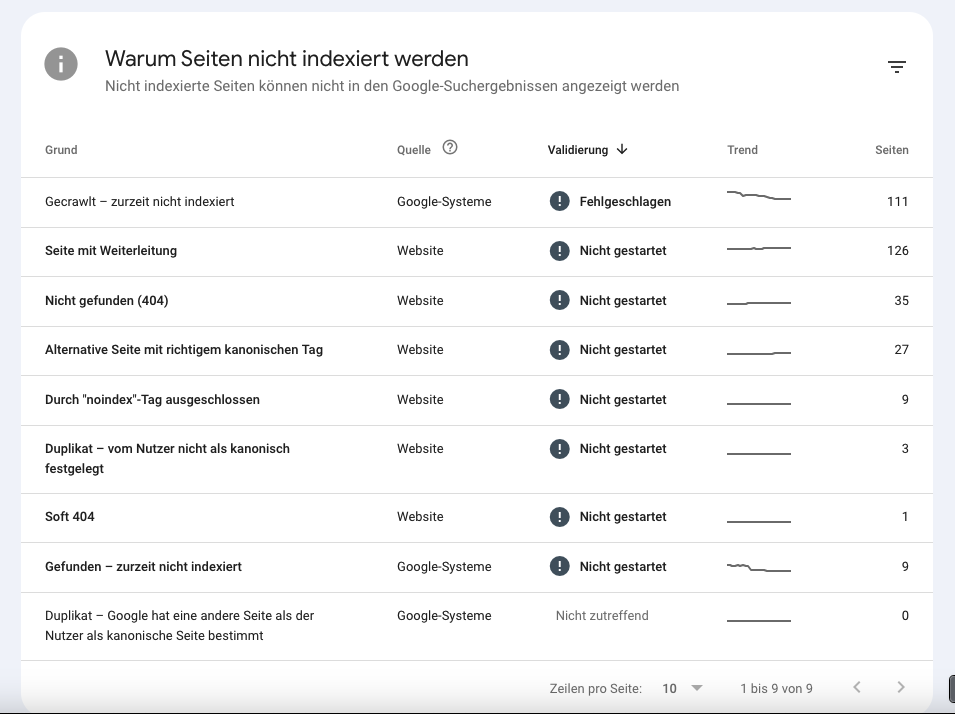
You can find out what these errors mean in detail and how to solve them in this article: Common GSC problems & their solution.
How do you use the URL inspection and "Test Live URL" function?
The URL inspection is a powerful tool for taking a closer look at individual pages:
- Enter the full URL in the search field at the top of the GSC
- The inspection shows you whether and how the page is indexed, as well as possible problems
- With "Request indexing" you can ask Google to crawl the page again
Particularly useful is the "Test Live URL" function, which shows you how Google sees the current live version of your page - including JavaScript-generated content. This is invaluable for checking whether Google can recognize all important content, especially for modern websites with JavaScript frameworks.
How do you interpret the crawl statistics?
The crawl statistics (under Settings) give you an insight into how Google's bots interact with your website:
- Total crawl requests: Shows how many times Google has tried to crawl your pages
- Bytes downloaded: The amount of data that Google processed when crawling your page
- Page download time: How long it takes Google to load your pages
A sudden drop in the crawl rate could indicate server problems or crawling restrictions. Persistently high loading times signal performance problems that should be rectified.
Pay particular attention to crawling spikes and dips - they can indicate technical problems or Google updates affecting your website.
Improve internal linking
The GSC links report offers you valuable insights into the linking structure of your website and external backlinks. The "Internal links" section is particularly relevant for internal linking:
- Go to the "Links" section in the left navigation bar
- Select the "Internal links" tab
- Here you can see all your pages, sorted by the number of internal links pointing to them
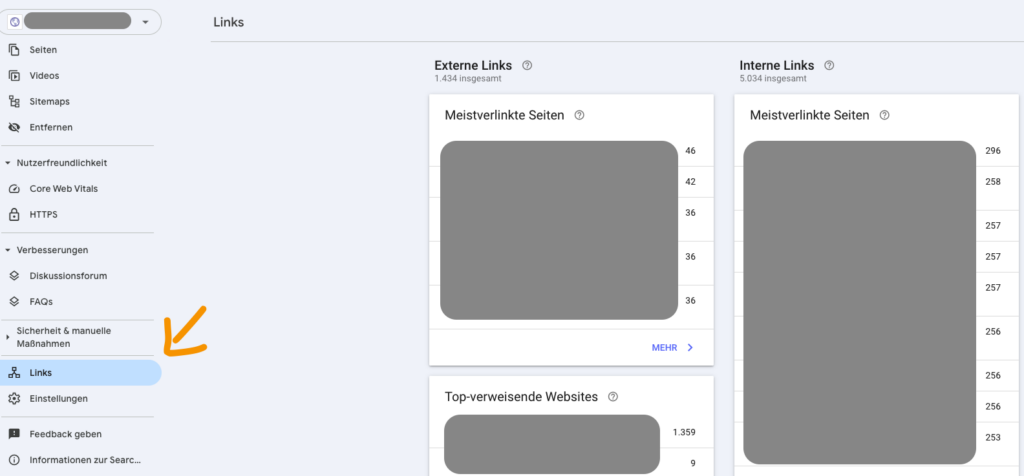
This overview shows you which pages are heavily integrated in your internal linking structure and which are neglected. The default sorting shows you the pages with the most incoming internal links first - typically the homepage and main category pages.
How do you identify "forgotten" pages?
"Forgotten" pages are URLs that receive hardly any internal links and therefore have less authority and visibility:
- Sort the internal links report from low to high
- Identify pages with very few internal links (1-3 links)
- Check these pages for:
- Relevance and quality of the content
- Potential for more traffic
- Importance for your conversion goals
Note: The GSC does not show "orphan pages" (pages without any internal links). To find these, you need additional tools such as Screaming Frog or SEMrush, which can crawl your entire website.
What strategies are there for optimizing the internal linking structure?
Once you have identified "forgotten" pages, you can apply these strategies:
- Link equity distribution: Add links from authoritative pages (such as the homepage) to important but underserved pages.
- Form thematic clusters: Link thematically related pages together to signal to Google that they belong to one topic area.
- Implement a silo structure: Organize your website into thematic silos with clear hierarchies and networks.
- Incorporate contextual links: Link within text passages with meaningful anchor texts instead of generic "click here" links.
- Optimize automated links:
- Set up "Related articles" sections for blog posts
- Implement "Customers also bought" recommendations for e-commerce sites
- Use breadcrumb navigation for clear hierarchies
- Handle outdated content:
- Update and relink valuable but neglected pages
- Merge outdated content without added value or forward via 301 redirect
- Remove really irrelevant pages or noindex them
Important: Internal links should also be useful for the user and not just for SEO purposes. The best internal links lead visitors to content that helps them in their current context and satisfies their need for information.
Limitations of the GSC and supplementary tools
Google Search Console is an indispensable tool, but it has some limitations that you should be aware of:
- Data limitation: The GSC displays a maximum of 1,000 lines of data per report and only exports this amount. This is a significant limitation for large websites with thousands of keywords and URLs.
- No search volume: Unlike paid SEO tools, the GSC does not show how often a particular keyword is searched for. You only see impressions for your own site, not the overall potential.
- No competitor data: The GSC does not provide any information about your competitors - you only see how your own website is performing.
- Limited historical data: The data is only stored for 16 months. For longer-term analyses, you must export the data regularly and archive it yourself.
- Limited technical analysis: The GSC provides some indications of technical problems, but does not offer a comprehensive technical check like specialized crawler tools.
- Inaccurate position information: The average position is a mean value and can give a distorted picture if the rankings fluctuate greatly.
How do you get around the 1,000-line limit?
This limitation is particularly frustrating, but there are several solutions:
- Looker Studio (formerly Data Studio):
- Connect the GSC with Looker Studio via the native connector
- Create a dashboard that imports all data
- This bypasses the 1,000-line limit and allows all keywords to be analyzed
- Combine several filtered exports:
- Export data with various filters (e.g. by position, clicks or date)
- Combine the exports in a spreadsheet
- Remove duplicates for a complete overview
- Use Google Search Console API:
- For tech-savvy users, the API offers access to a much larger contingent
- Develop your own scripts or use existing tools that access the API
- Tools such as SEOTesting or Analytics Edge can help here
- Regular data backup:
- Export your most important data on a weekly or monthly basis
- Create an archive for long-term trend analyses
- Particularly important for seasonal business for annual comparisons
Using Google Search Console for SEO - my conclusion
After all the features and strategies we've looked at, one thing is clear: no other tool gives you such a direct insight into what Google itself thinks about your website and how your pages are actually performing.
My advice to you: Make the Google Search Console your daily companion. Set up routines, experiment with the various reports and learn to interpret the data correctly.
With this knowledge, you will not only improve your rankings, but also develop a deeper understanding of how Google actually perceives your website - and this is ultimately the key to long-term SEO success.

