

WordPress already offers you an excellent basis for search engine optimization. Unlike many other content management systems, WordPress is search engine friendly by default. But that alone is not enough. You need to take action and specifically optimize your WordPress site to exploit its full potential.
In this guide, you will learn how to optimize your WordPress website for search engines step by step - from choosing the right hosting to the perfect content structure and technical optimizations that can catapult your site to the first page on Google.
1. laying the right foundations
Before you get involved with complicated SEO techniques, you need to lay a solid foundation. The basic infrastructure of your WordPress website is crucial to your SEO success.
Why? Because search engines not only evaluate your content, but also how fast and secure your website is.
How do you choose the right hosting for your WordPress site?
Choosing your hosting provider is one of the most important SEO decisions of all. You can have the best content in the world - it will never rank well with a slow server.
Have you ever left a website immediately because it loaded too slowly? You're not alone. Studies show that a delay of just two seconds can increase the bounce rate by 32%. Google knows this and has officially declared loading speed to be a ranking factor.
A fast server ensures that:
- Your page is indexed faster
- Visitors stay longer on your site (which in turn is a positive ranking signal)
- Mobile users have a better experience
- Your Core Web Vitals scores are better - an important ranking factor since 2021
Tip: Carry out a speed test with GT Metrics or Google PageSpeed Insights. If your site takes longer than 3 seconds to load despite optimization measures, you should seriously consider changing hosting.
Does the server location influence your ranking?
The physical location of your server plays a surprisingly large role in your ranking:
If your target group is mainly in Germany, you should choose a server in Germany or at least in Europe. The geographical proximity of the server to your visitors shortens the transmission time and improves the user experience.
Google also takes the server location into account for search queries. A German website on a German server has a better chance of ranking well for local search queries.
How do you implement HTTPS and SSL certificates?
Since 2018, Google has labeled websites without HTTPS as "not secure" - a clear warning signal for visitors and a negative ranking signal.
A secure HTTPS connection:
- Protects the data of your visitors
- Builds trust (important for E-E-A-T)
- Has been an official ranking factor since 2014
- Prevents Chrome users from seeing warning messages
Free SSL options from your hosting provider
The good news: SSL certificates don't have to be expensive. Most high-quality hosting providers offer free Let's Encrypt SSL certificates:
- Log in to your hosting dashboard
- Search for SSL or Let's Encrypt
- Activate the free SSL certificate with one click
- Make sure that automatic redirection from HTTP to HTTPS is set up
Cloudflare as an alternative for SSL implementation
If your hosting provider does not offer free SSL or you want to take advantage of additional security and performance benefits, Cloudflare is an excellent alternative.
How to set up Cloudflare as an SSL solution:
- Create a free account with Cloudflare
- Add your domain
- Change your nameservers to those of Cloudflare (instructions will be provided)
- Activate HTTPS in the Cloudflare settings
Bonus benefit: Cloudflare not only offers SSL, but also a global CDN (Content Delivery Network), DDoS protection and caching - all factors that can improve your page load time and thus positively influence your SEO ranking.
Summary: A fast, secure server is the foundation of any successful WordPress SEO strategy. Invest in high-quality WordPress hosting and implement HTTPS before engaging in more complex SEO tactics.
2. the right WordPress configuration
After setting up a solid hosting infrastructure, the next crucial step is the optimal configuration of your WordPress installation. These basic settings determine how search engines perceive your site and how well they can index it.
How do you choose an SEO-friendly WordPress theme?
When choosing an SEO-friendly theme, the following features are crucial:
Clean, valid code: Search engines prefer websites with error-free HTML. Themes with faulty code can affect indexing. Test your theme with the W3C Markup Validation Service to ensure that the code complies with HTML standards.
Responsive design: Since Google switched to mobile-first indexing, a mobile-friendly design is no longer optional, but absolutely necessary. Your theme should automatically adapt to different screen sizes.
Correct heading structure: A good theme uses H1-H6 tags in the correct hierarchical order. This helps search engines to understand the structure and meaning of your content.
Schema.org markup: Themes with built-in Schema.org support help search engines better understand the context of your content, which can lead to richer search results.
Compatibility with SEO plugins: Make sure that your theme works smoothly with popular SEO plugins such as Yoast SEO or Rank Math.
Avoid themes that:
- Bring dozens of slider plugins with you
- Hundreds of fonts included
- Load an excessive number of JavaScript files
- Overloaded with visual effects are
These themes are usually very slow and optimization is extremely laborious.
Tip: Test the demo version of a theme with PageSpeed Insights before you buy it. A score below 70 should make you skeptical.
Also choose a theme that is updated regularly
A regularly updated theme is crucial for security and compatibility with new WordPress versions. Here's how you can check this:
- Look in the WordPress theme directory: For free themes, you will find the date of the last update and the WordPress versions with which it is compatible.
- Read the changelog: Serious theme developers keep a detailed changelog that documents all updates and improvements.
- Check the ratings and user numbers: Themes with many active installations and positive ratings are usually well maintained.
- Pay attention to the support forum: An active support forum shows that the developers are responding to user feedback.
A theme that has not been updated for more than 6 months could pose a risk.
What basic settings do you need to make?
After installing your theme, there are some critical settings that you should make for optimal SEO.
Make sure that search engines can index your site

The first and most important step is to ensure that your WordPress site can be found by search engines in the first place:
- Go to Settings > Read in your WordPress dashboard
- Make sure that the option "Prevent search engines from indexing the website" is NOT activated
This small checkbox has a huge impact! Many website operators forget to deactivate them after they have moved their site from development mode to production - with disastrous consequences for their ranking.
In addition, you should:
- Create a robots.txt file (with an SEO plugin such as RankMath)
- Generate an XML sitemap and submit it to Google Search Console
- Ensure that no important pages are inadvertently marked with "noindex"
The right URL structure: www vs. non-www
A consistent URL structure is an important signal for search engines. You have to decide whether you want to use the www version or the non-www version of your domain:
- www.deinewebsite.de
- yourwebsite.com
From an SEO perspective, there is no significant difference between the two variants, but consistency is key. You should:
- Set your preference under Settings > General by entering your preferred version in "WordPress address (URL)" and "Website address (URL)"
- Ensure that all internal links use this format
- Set up a 301 redirect from the non-preferred to the preferred version
- Set the preferred version as the canonical domain in Google Search Console
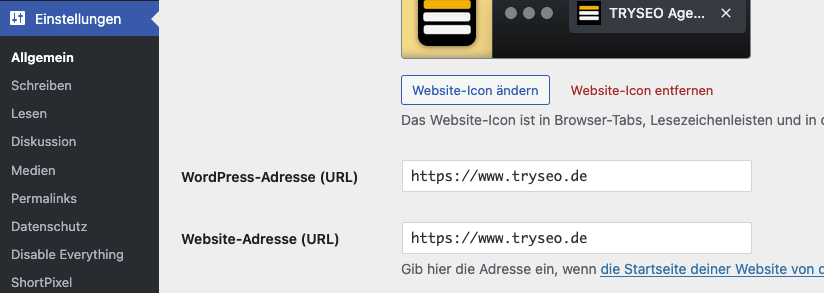
Important: If you change an existing website, this could have a temporary impact on your ranking. Plan this change carefully.
The optimal permalink settings for better ranking
The permalink structure determines how the URLs of your pages and posts look.
Go to Settings > Permalinks and select the option "Post name". This will display your URLs in the following format:
- yourwebsite.com/example-contribution/

This setting offers several SEO advantages:
- The URL contains relevant keywords that help search engines understand the content
- Users can easily recognize what the page is about
- The URLs are shorter and easier to share
- They are more reader-friendly than numerical structures
Avoid the default setting "Simple" (e.g. /?p=123), as it does not contain any keywords and is less informative for search engines.
Warning: Never change the permalink structure of an existing website without a plan for 301 redirects! This can lead to massive traffic losses, as all old URLs would suddenly generate 404 errors.
If you need to change your permalinks on an existing page, use a redirect plugin like "Redirection" or the corresponding function of RankMat to redirect all old URLs to the new ones.
Summary: Choosing a fast, regularly updated theme and configuring your WordPress basic settings correctly form the backbone of your SEO strategy. These measures require little time, but have a long-term impact on your ranking potential.
3. content organization and structure
A well thought-out content organization is like the architecture of a house - invisible to the visitor, but crucial for stability and functionality. Search engines reward websites with a clear structure, as they improve user guidance and signal thematic relevance.
How do you organize your content optimally?
Categories and tags are not just any organizational tools - they have specific functions in the SEO context:
Categories are like book chapters - they represent the main topics of your website. They should:
- Create a clear hierarchy
- Be broad enough to encompass multiple posts
- Be specific enough to signal thematic relevance
Tags, on the other hand, work like a keyword index - they link related content across different categories. Effective tags:
- Are more specific than categories
- Help readers find cross-topic connections
- Should be used sparingly and consistently
Important: Don't overdo it with tags! Too many tags with only a few posts can lead to duplicate content problems, as WordPress creates a separate archive page for each tag. A good guideline: Only use tags if they link at least 3-5 posts.
A practical example: For a cooking blog, the main categories could be "starters", "main dishes" and "desserts", while tags such as "gluten-free", "under 30 minutes" or "Mediterranean" serve as cross-cutting themes.
How do you create a logical page structure?
Google rewards websites with a clear, logical page structure. This helps search engines to understand which content is most important and how it is connected.
The ideal page structure follows a silotype model:
- Main page (highest authority)
- Main categories (second highest authority)
- Subcategories (if necessary)
- Individual contributions and pages
This structure should be reflected in your URL structure, e.g:
- yourwebsite.com/maincategory/subcategory/contribution-name/
Particularly important for SEO: Keep the click depth low! Every important page should be accessible in a maximum of 3 clicks from the homepage. Pages that are buried deeper are crawled less often by search engines and receive less link equity.
To ensure an optimal structure:
- Create a visual sitemap of your website (a simple flowchart), also works with ScreamingFrog
- Check whether important content is buried too deep
- Reorganize categories and menu structures as required
Internal linking: best practices for better rankings
Internal linking is one of the most powerful and yet often underestimated SEO tools. It helps search engines discover new content, distributes link equity across your website and improves user navigation.
The advantages of a well thought-out internal linking strategy:
- Deeper indexing of your website by search engines
- Longer dwell time for visitors
- Distribution of authority from strong to weaker sides
- Establishing thematic relevance
Practical tips for effective internal linking:
- Use descriptive anchor texts. Instead of "Click here", you should use relevant keywords in the link text, e.g. "WordPress themes for better SEO".
- Link thematically related content. Google ranks links between thematically similar pages higher than random links.
- Link from your strongest pages (usually main page and main categories) to your most important target pages to transfer link equity.
- Keep links up to date. Check regularly for broken links and update old content with links to newer, relevant posts.
An often overlooked tip: add 3-5 internal links to related articles at the end of each new post. This not only improves SEO, but also increases the likelihood that visitors will discover further content on your site.
4. which WordPress SEO plugins should you use?
A good SEO plugin makes optimization much easier and automates many technical aspects. There are several high-quality options, but two stand out in particular.
Comparison between Rank Math and Yoast SEO
Yoast SEO was the undisputed market leader for a long time, but Rank Math has caught up considerably in recent years. Here is a brief comparison:
Yoast SEO:
- Strengths:
- Established and proven for over 10 years
- Intuitive interface with traffic light system
- Excellent documentation and support
- Solid free version
- Weaknesses:
- Many advanced functions only in the premium version
- Can sometimes slow down WordPress
- Sometimes cumbersome user interface
Rank Math:
- Strengths:
- More functions in the free version
- Integrated Schema.org support
- Multiple focus keywords even in the free version
- Tends to conserve resources
- Weaknesses:
- Steeper learning curve for beginners
- Less extensive documentation than Yoast
- As a newer provider, fewer testimonials
My recommendation: Both plugins are excellent. For beginners, Yoast SEO is often the better choice due to its simplicity and extensive documentation. Advanced users who want more functions without a premium upgrade are better served with Rank Math.
Basic setup of your SEO plugin
Regardless of which plugin you choose, you should make these basic settings:
1. customize titles and meta descriptions:
- Define title templates for different content types (homepage, posts, pages, categories)
- Make sure your brand/website name appears in every title
- Activate the automatic generation of meta descriptions if no manual ones are available
2. social media integration:
- Add Open Graph data (for Facebook)
- Activate Twitter Cards
- Upload a standard post image for pages without your own images
3. XML sitemap settings:
- Activate automatic sitemap creation
- Customize which content types should be included in the sitemap
- Check whether certain posts or pages should be excluded
4. robots.txt and .htaccess configuration:
- Check that important areas of your website are not inadvertently blocked
- Ensure that development areas or test pages are correctly excluded
5. breadcrumb navigation:
- Activate breadcrumbs for better user guidance and structured data
- Adapt the breadcrumb structure to your page architecture
Common mistake: Many WordPress users install an SEO plugin and leave it at the default settings. Take the time to customize the configuration to your specific needs - it makes a huge difference!
Create XML sitemap and submit to search engines
An XML sitemap is like a map for search engines, helping them to find and index all the important pages of your website.
How to create an XML sitemap:
- With your SEO plugin:
- In Yoast: Go to SEO → General → Features and activate the XML sitemap function
- In Rank Math: Navigate to Rank Math → Sitemap settings and activate sitemap generation
- Check your sitemap:
- Open it in your browser (usually under deinewebsite.de/sitemap_index.xml or deinewebsite.de/sitemap.xml)
- Make sure that all important pages are included and no unimportant content
How to submit your sitemap to search engines:
- On Google:
- Log in to Google Search Console
- Add your website and verify ownership
- Go to "Sitemaps" and enter the URL of your sitemap
- Click on "Submit" and monitor the indexing status
- At Bing:
- Register with Bing Webmaster Tools
- Add your website and verify it
- Navigate to the sitemaps section and submit your sitemap
An often overlooked tip: Resubmit your sitemap after you have made major changes to your website. This signals to the search engines that they should crawl your site again.
5. special WordPress SEO techniques
After you've mastered the basics of WordPress SEO, it's time to dive deeper into some specialized techniques. These advanced strategies address common SEO issues specific to WordPress websites.
How do you avoid duplicate content?
Duplicate content is a serious problem for WordPress websites and can lead to significant ranking losses. Google prefers original content and could devalue your site if the same content appears under different URLs.
Excerpts instead of full articles on the homepage
By default, WordPress displays full posts on the homepage, category pages and archive pages. This means that the same content is available under multiple URLs:
- deinewebsite.de/beispiel-beitrag/ (the actual contribution page)
- deinewebsite.de/ (homepage, if the post is displayed there)
- deinewebsite.de/kategorie/beispiel-kategorie/ (the category page)
The solution to this problem is simple but effective:
- Go to Settings → Read in your WordPress dashboard
- Under "Show for each web page", select the "Summary" option instead of "Full text"
This setting means that only an excerpt is displayed on all archive pages, while the full content only appears on the actual article page.
Advanced tip: Customize your excerpts manually instead of using the automatically generated ones. A well-written excerpt can increase the click-through rate and give the reader a better insight into the content.
Using canonical tags correctly
Canonical tags are like digital signposts for search engines - they indicate which version of a page should be considered the "official" one if several similar versions exist.
WordPress automatically adds canonical tags to your pages by default, but in some cases you'll need to configure them manually:
- For seasonal or time-limited content: If you publish an updated post on the same topic, you should set the new post as canonical for the old one.
- For content syndication: If your content appears on other websites (e.g. guest articles or press releases), make sure that these pages link to your original URL.
- For different product variants: If you run an online store and have similar products with slightly different URLs.
How to set canonical tags with an SEO plugin:
- In Yoast SEO: Edit a post/page → Scroll to the Yoast SEO section → Click on the gear icon → "Advanced" tab → Enter the canonical URL
- In Rank Math: Edit a post/page → Scroll to the Rank Math section → "Advanced" tab → Set the canonical URL
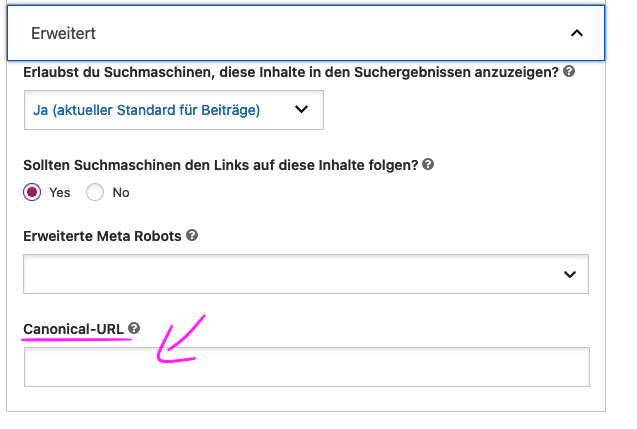
A common mistake: Don't confuse 301 redirects with canonical tags. While a 301 redirect physically redirects visitors and search engines to a new URL, a canonical tag allows access to the page but informs search engines of the preferred version.
Implement pagination correctly
Paginated content - such as blog overviews with multiple pages or long articles split into multiple pages - can lead to duplicate content issues if not handled correctly.
For blog overviews and archive pages:
WordPress automatically adds rel="next" and rel="prev" tags to paginated pages, which helps search engines understand the relationship between pages. Nevertheless, make sure that:
- The first page of a paginated series marked as canonical for itself is
- subsequent pages are marked as canonical for themselves (not for the first page)
How do you optimize for mobile devices?
With Google's mobile-first indexing, mobile optimization of your WordPress website is no longer optional - it's absolutely crucial for your search engine ranking. More than 60% of web traffic today comes from mobile devices.
Ensure mobile-friendly design
A responsive design automatically adapts to the screen size and offers an optimal user experience on all devices. This ensures that your WordPress site is truly mobile-friendly:
- Choose a fully responsive theme: Modern WordPress themes are usually responsive, but test it with Google's Mobile-Friendly Test anyway.
- Optimize the viewport settings: Make sure that your theme contains the following code in the header:
<meta name="viewport" content="width=device-width, initial-scale=1"> - Check the mobile view regularly: Use your browser's developer tools (F12 in Chrome) to simulate different screen sizes.
- Watch out for these common mobile design problems:
- Buttons and links too small
- Font sizes too small (at least 14px for continuous text)
- Overlapping elements on small screens
- Horizontal scrolling required
An essential test: Try to navigate your website using only the thumb of one hand. If this is difficult, adjustments need to be made.
Adaptations for touch devices
Touch devices have different requirements than desktop computers with a mouse and keyboard. These adaptations significantly improve the mobile experience:
- Optimize the tap target size: All clickable elements should be at least 44x44 pixels in size so that they can be easily tapped with a finger.
- Increase the distance between clickable elements: Make sure that links and buttons have enough space between them to avoid accidental clicks. A minimum spacing of 8px is recommended.
- Implement touch gestures: Consider implementing swipe functions for image galleries or sliders instead of small navigation arrows.
- Optimize forms for mobile users:
- Use the correct input type for form fields (tel, email, number) to display the appropriate keyboard on mobile devices
- Activate autofill functions wherever possible
- Minimize the number of required input fields
Practical tip: Add this CSS code to prevent phone numbers from being automatically formatted as links (unless you explicitly want this):
a[href^="tel"] {
  color: inherit;
  text-decoration: none;
}
Special mobile SEO adjustments
In addition to responsive design, there are other mobile SEO optimizations that can improve your ranking:
- Optimize for Core Web Vitals: These metrics measure the loading speed, interactivity and visual stability of your site:
- LCP (Largest Contentful Paint): Should be less than 2.5 seconds
- FID (First Input Delay): Should be less than 100 milliseconds
- CLS (Cumulative Layout Shift): Should be below 0.1
- Reduce file and image sizes for mobile users:
- Activate adaptive images in your theme or with a plugin such as "Adaptive Images"
- Implement WEBP image formats for faster loading times
- Use a plugin such as "WP Rocket" or "Autoptimize" for mobile-specific optimizations
- Improve the mobile loading speed:
- Delay the loading of non-critical JavaScript files
- Implement browser caching with longer expiration times
- Consider implementing AMP (Accelerated Mobile Pages) for news content or blogs
- Optimize local SEO for mobile users:
- Add a prominent "Contact" element that is easy to reach on mobile devices
- Implement click-to-call functions for phone numbers
- Add map links that open in native map apps
An unusual but effective tip: add a "call now" button that stays fixed on mobile devices while the user scrolls. This can significantly increase the conversion rate, especially for local services.
Optimize WordPress page SEO: Your next steps
Congratulations! You have now learned all the important WordPress-specific SEO basics and are ready to take your website to the next level.
From choosing the right hosting and the optimal WordPress configuration to special techniques such as avoiding duplicate content and mobile optimization - you now have the knowledge you need to create a solid SEO foundation.
Remember: A technically optimized WordPress website is just the beginning of your SEO journey. It's like a well-built vehicle - ready for the road, but without fuel and a navigation system, you won't reach your destination.
The next logical step is to dedicate yourself to general SEO methods that work regardless of the platform used. Above all, this includes a well thought-out keyword strategy, building high-quality backlinks and continuously analyzing and optimizing your content.
In our comprehensive article "SEO strategy: The ultimate guide for 2025" you'll find exactly the information you need right now. There you will learn:
- How to develop a customized SEO strategy that is aligned with your specific business goals
- How to analyze your target group and create content for different phases of the customer journey
- Which keyword research methods work even in highly competitive niches
- How to achieve initial success quickly with the "low-hanging fruit" strategy
- How to prepare for the SEO trends of 2025, including Generative Engine Optimization (GEO)
The technical WordPress optimizations you have now implemented form the foundation - but the strategic SEO work will ultimately determine whether your website appears at the top of the search results.
Remember: Search Engine Optimization is not a one-off project, but a continuous process. Algorithms change, competitors adapt their strategies and user behavior evolves. Stay on the ball, analyze your results regularly and be ready to adapt your tactics.
With your optimized WordPress website and a well thought-out SEO strategy, you are ideally equipped to stay ahead of the digital competition. The path to the top of the search results may not be short - but with the right tools and strategies, it is definitely achievable.

